How to capture 360° photos and videos with the "Little Planet" effect
On Your Desktop or Laptop
By: Andrew Polino
Work:
You Will Need:
- GoPro VR Player
- Any screen capture software (if you don't have any, use OBS for free)
GoPro VR Player Settings:
File > Preferences > General Settings > Output Projection > Little Planet
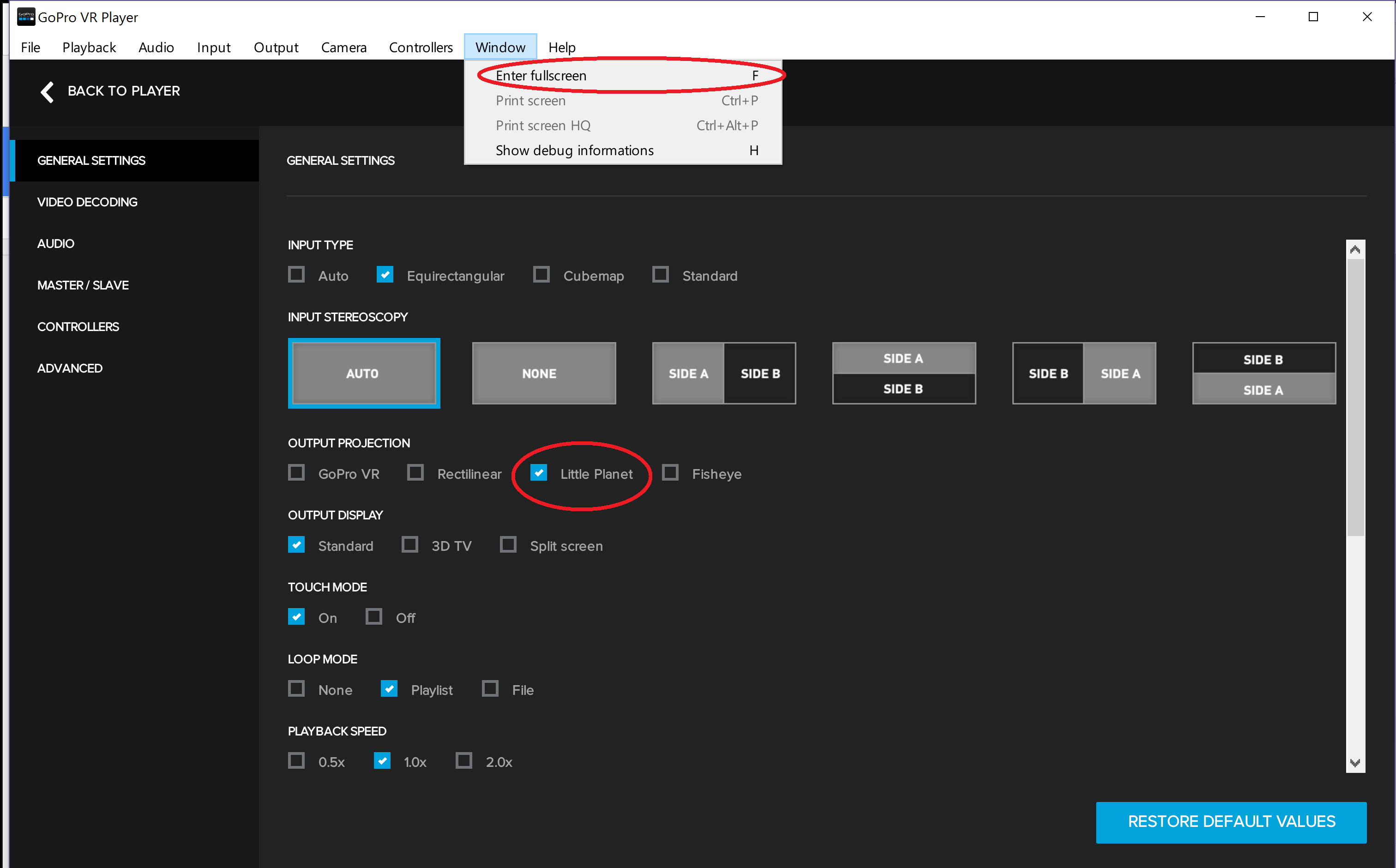
1. Capturing Video: After the Little Planet properties have been set, start recording on your screen cap software. Then go to the GoPro VR Player, toggle to ‘fullscreen’ and open your equirectangular video in the player.
*Note: You may need to adjust the angle of the video so that the “Tiny Planet” appears correctly. Click and drag until the sphere looks the way you want, and use the ‘zoom’ (pad, wheel, etc) on your mouse to zoom to the scale you want.*
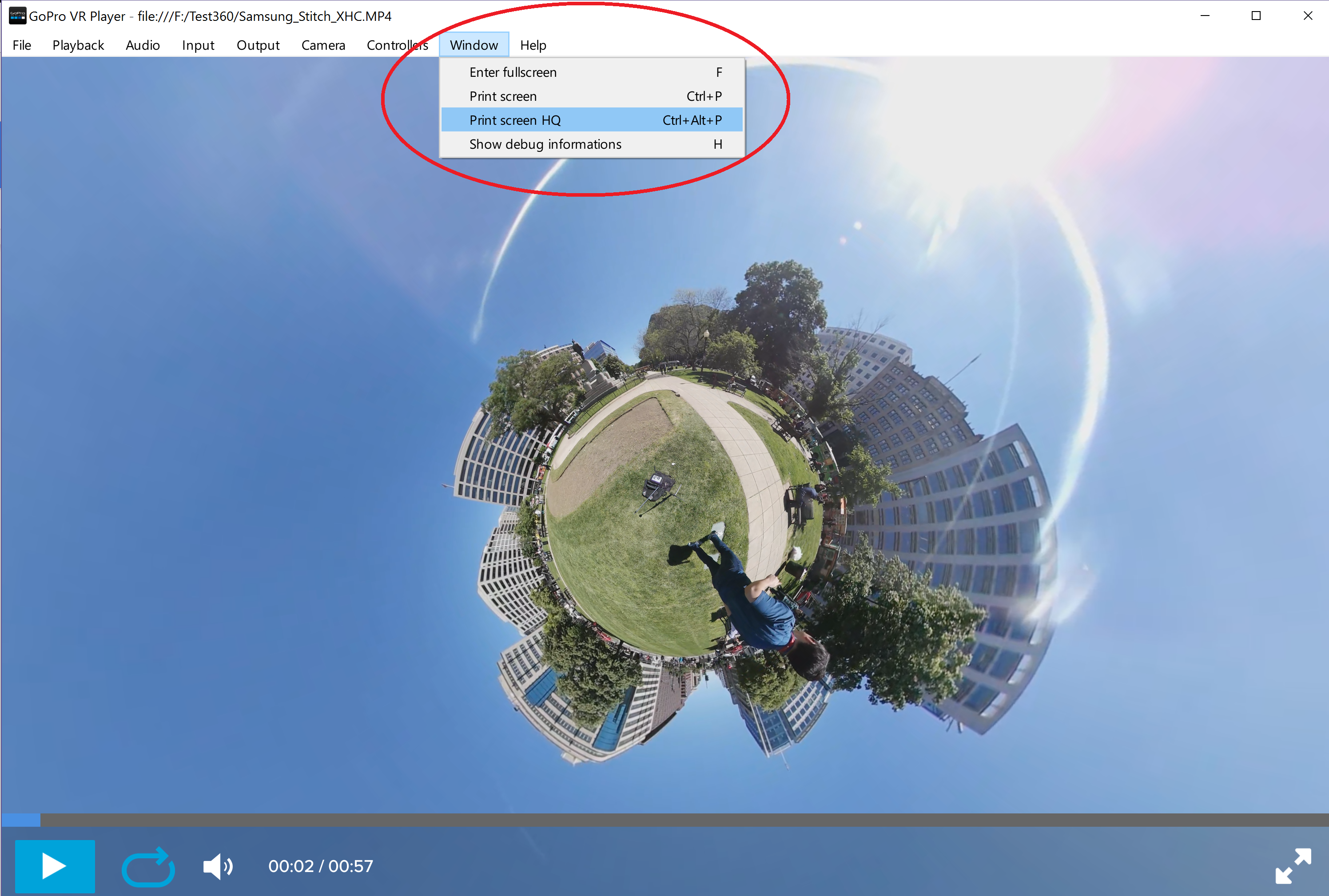
2. Capturing Stills: Pause the video at the frame you want to capture. Then at the top toolbar, select: Window > Print Screen HQ
*Note: This feature was added to the GoPro VR Player fairly recently, so make sure your player is the latest version
*If you're using OBS*
1. Scenes: Add( + ) “(enter a title)”
2. (with your new ‘Scene’ highlighted) Sources: Add(+) > “Display Capture”
3. Right-click “Display Capture” > “Transform” > Fit to Screen
4. Click ‘Start Recording’
5. Go to GoPro VR player, go to ‘fullscreen’ and upload the video.
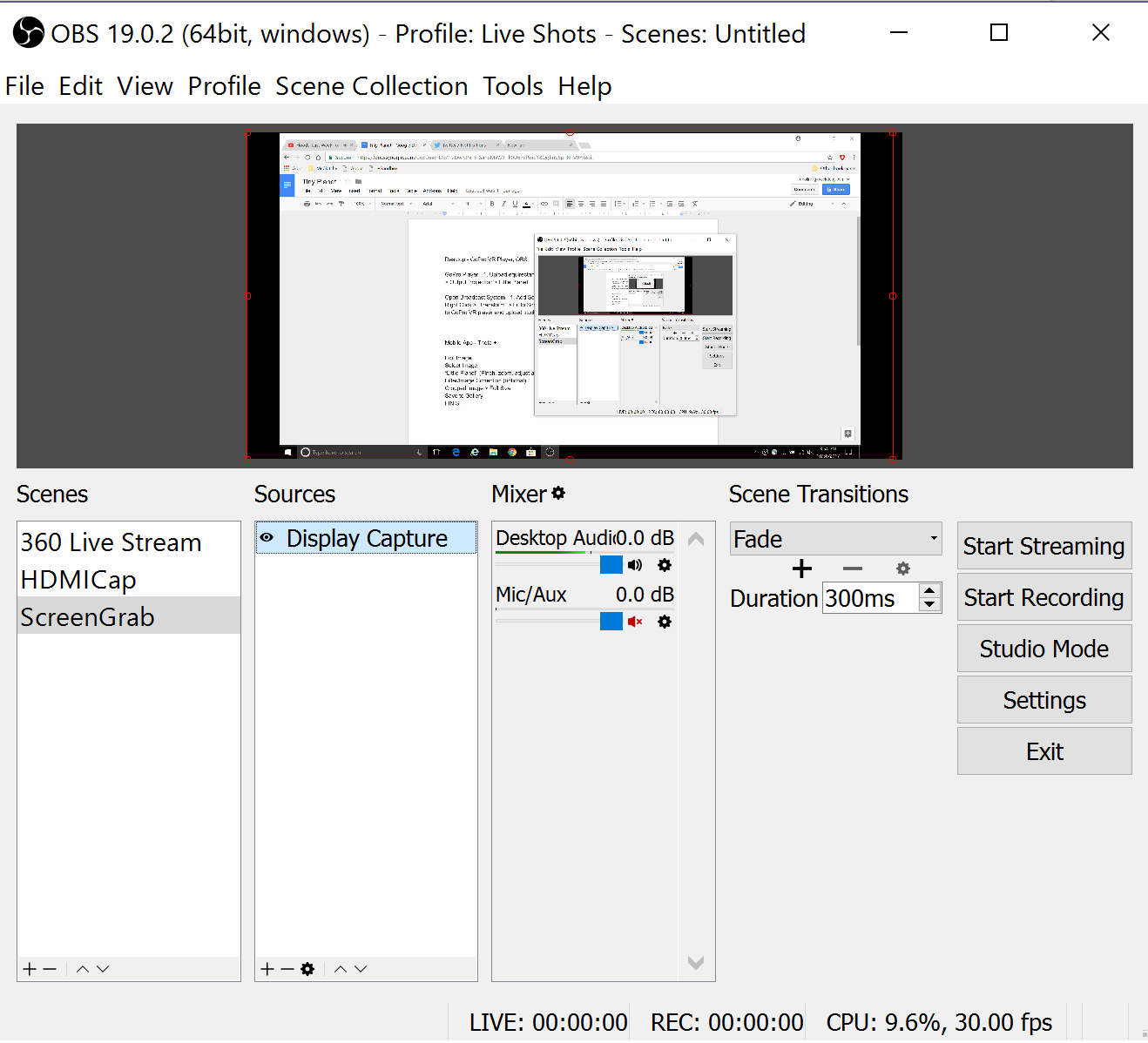
*NOTE*: Under "Mixer", make sure "Desktop Audio" is being picked up, and disable any "Mic/Aux" audio sources.