Finally finished my first "out of office" test of the Insta360 One Live Streaming. A couple of things I noted from this test
Since the last Iteration, there are now several consumer models of 360 video cameras (both standalone and add-ons for Android and iOS devices) that have built in 360 Live streaming on their apps. For this test, I used an iPhone 8 and an Insta360 One camera with companion app. My goal was to begin setting up a kit for 360 Live Streaming. The Insta360 One streams both in 2D and 360 video on Facebook, YouTube, Periscope, and Weibo (as well as to an RTMP feed that can be accessed via Open Broadcasting System)
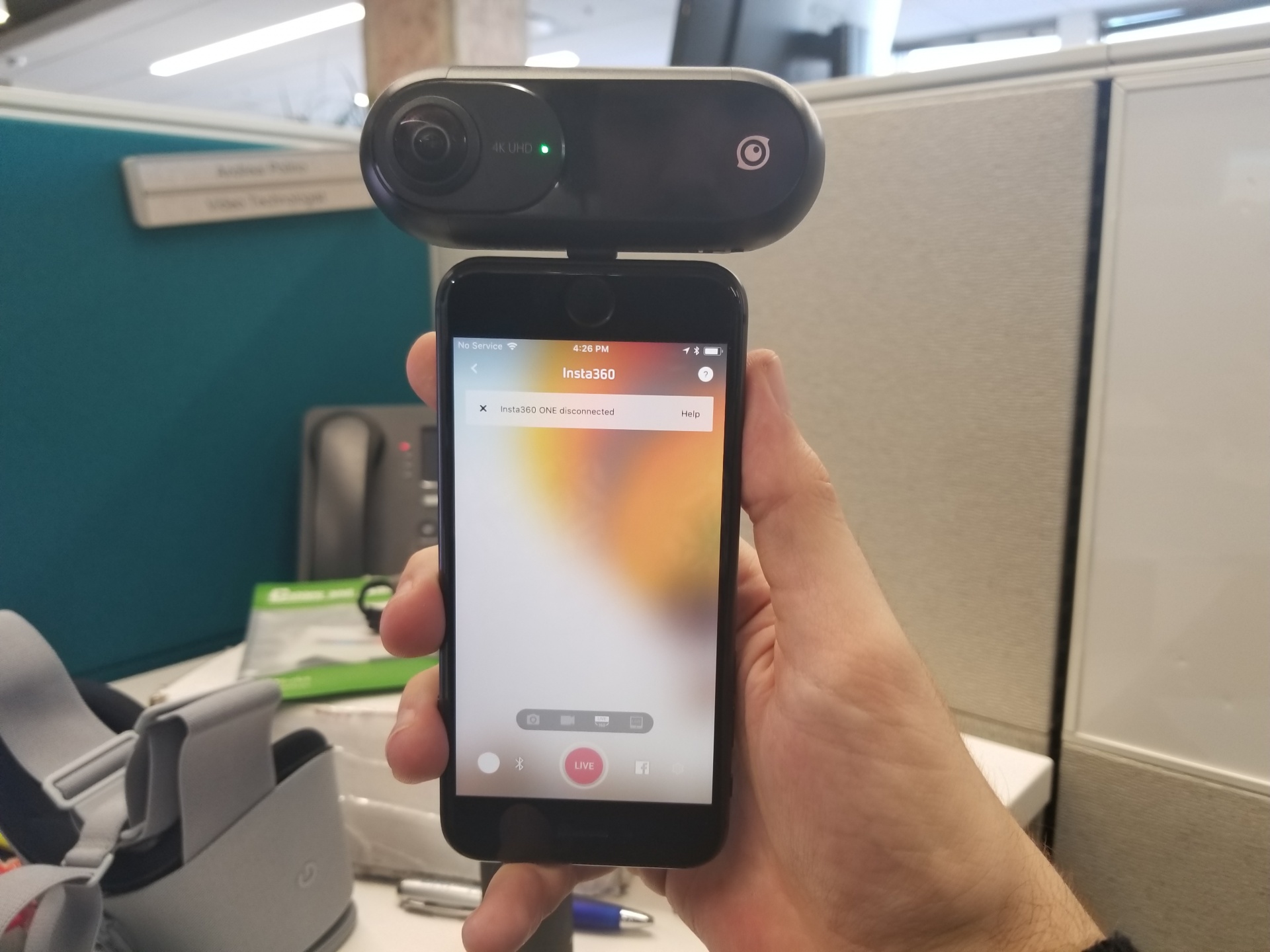
Pros: The Insta360 One app is very user-friendly with Bluetooth pairing and an interface similar to the Samsung Gear 360 app (including similarly controllable camera settings and a variety of modes and extra features). The camera includes built-in stabilization which is impressively smooth and fluid (although it is problematic for the video compression, so I would prefer static, mounted shots). The built-in lightning jack will require the use of a USB-C extension chord because otherwise, the jack will not plug into the phone if it is protected by its Otter case.
The biggest obstacles however have to do with shooting in the field. The iPhone 8 does not have service, so any kit must include a hotspot or Mi-fi in order to be usable. Will attempt more tests out in the field and monitor the Wi-fi speeds the app picks up while streaming.
"The moving seriously taxes the compression...Would be good to hear what speeds you were getting on the Wi-Fi" - Ben Connors
The key to putting together a mobile version of live streaming with the RICOH was finding a mobile app that could detect and broadcast video from it. This was a challenge since the RICOH is not a camera that has integrated Facebook or YouTube streaming.
The app I used was CameraFi Live: an app that not only can pick up feed from the Ricoh (which I connected to a Samsung Galaxy Note5 using a USB-to-OTG adapter), but also includes a filter that will automatically convert the dual sphere image to an equirectangular one. Though CameraFi Live has several options for platforms to stream to (YouTube, Facebook, Ustream, Wowza, and 'custom' options for RTSP or RTMP servers), YouTube is the only option that supports live streaming in 360-degree video.
(Note: Ben and I tried using the 'custom RTMP' server option to enter Facebook Live's RTMP server URL and streaming key for a Live 360 stream. This ultimately didn't work, because Facebook needs to pick up the live feed you're streaming into the server/key from the camera before it will give you the option to go live. And since CameraFi Live immediately stops streaming if you toggle away from it, there was no way we could leave it running while we tried to complete the Facebook setup)
So ultimately, I had to use the YouTube preset, and I could only stream in HD (720p) which was low resolution even by RICOH standards. CameraFi Live CAN offer Full HD streaming (1080p), but that's hidden behind an in-app subscription ($8.99 a month or $79.00 a year), and so are the options to remove the "CameraFi" watermark from the stream, the removal of ads, and a lot of the additional features. That's why I need to consider whether it's a better investment to upgrade to the "pro" version of the app, or go for a different plug-and-play 360 camera with integrated streaming.
There were a couple of other things I noticed in trying to get the app to live stream:
So here's the process step-by-step
1. Open the CameraFi Live app, select the "YouTube" bar, and add whatever e-mail address corresponds with the YouTube channel you're posting/streaming to. When that's done, hit the "Camera" button at the top of the menu to go to the video screen.
2. Turn on the 360 video filter: To do this, go to the right-hand side of the video screen (next to the "Ready" button) and swipe left. A menu of add-ons should pop up, including 'image', 'text', 'filter', 'plugin', and 'theme'. Choose the 'Filter' option and select the 'Ricoh Theta S' filter from the list.
3. Set up the YouTube server: Now go back to the video screen, and press the Setup button (the 'gear' icon on the lower right-hand side). Check on the settings, title, channel, etc of your stream, but ABOVE ALL, make sure you select the option "360 Live Stream". Remember, do this before you've plugged the camera in.
*IMPORTANT: You'll have to repeat steps 2 & 3 every time you open the app to do a Live Stream. These settings are not automatically saved.
4. Now plug the camera in. Again, remember that it should already be on and set to "Live". The app will issue the following prompts:
"Allow the app CameraFi Live to access the USB device?" press OK
"Would you like to switch USB audio as basic audio?" press CANCEL (you do not want the Ricoh to be your audio source. you will use the microphone in the mobile phone instead)
"Would you like to switch USB camera as main screen?" press OK
5. Now hit the red "Ready" button on the right hand side of the screen. Make sure the title is what you want and the resolution is correct (should be HD 720p for freeware version, Full HD 1080p for the pro version)
6. This will take you into live mode (note: if the image has frozen, you'll have to unplug the camera and plug it back in again. The image will stay frozen if you go live). Note the bar at the bottom which says "Before Start Streaming, you can share your broadcast". The "Share" options include posting the YouTube Live feed to Facebook. Not quite the same as being able to set up a Facebook Live, but it will do for this setup.
7. Press the red button again (which should now say "GO"), and we're live!
Again, very low-res and very difficult to get going, but it works!
Set up the RICOH Theta S camera for live streaming capabilities using this video tutorial:
In summary:
Set up video encoding/broadcasting app (I used OBS per the tutorial's directions) to connect with whatever streaming service you want to use.
Field-testing this was a challenge. Since this setup won't work without a computer and wifi connection, there were real limitations on where I could set up the equipment.
I know from other tutorials that it can be possible to create a "mobile" version of the RICOH setup by connecting it to an Android phone, and I know through Facebook's 360 Live page that there are newer camera models (some plug-and-play add-ons for your mobile device, some standalone cameras, notably the new Samsung Gear 360 2017) that include integrated support for 360 live streaming. The next iterations will depend on what I can access.
Live Streaming Options:
Facebook Live 360 - Facebook offers a direct platform for live streaming in 360. The highest resolution FB supports is currently 1080p. According to the manual generously provided by the site, you can set up a 360 livestream by connecting your 360 camera app to Facebook’s “Live” web page via an RTMP server.
FB 360 also recommends specific camera models for live streaming: from plug-and-play phone add-ons (in the $150-250 range) to professional grade VR cameras ($2,500 - $40,000 if directly purchased).
Among the cameras recommended is the new Samsung Gear 360. While the original Gear 360 does not come with streaming capabilities, the new 2017 model does.
It is also possible (though complicated) to live stream with spatial audio! In order to do this, you can either use a 360 camera with integrated spatial audio (this is currently only available on the top shelf, professional grade cameras mentioned above) OR you can follow the instructions in this video (the guys in this clip use a Giroptic IO device and a laptop acting as a RMTP proxy, a Core Sound Tetramic and a combination of Sound Flower and ffmpeg. They provide a diagram of their workflow in the video)
YouTube Events - 360 Livestream - The “events” section of YouTube live streaming (not “Stream now”) can also encode in 360 video. According to the directions, some cameras may offer direct integration with YouTube live.
*Note* Of the cameras we currently have, the RICOH Theta S has live streaming capabilities, and it works for both YouTube and Facebook live streaming. We need to upgrade the firmware to make sure it streams at 1080, and going by the instructions, we may need a laptop on hand to capture a stream that can then be connected to YouTube/FB, but it’s a good place to start testing.
Wowza Streaming Engine/Cloud - The most high-end platform for live streaming. Supports 4K 360 video, and also streams directly into VR devices. This is designed for industrial quality VR since it incorporates multi-camera rigs and charges on a per-use basis (or $1,995 for a perpetual license)