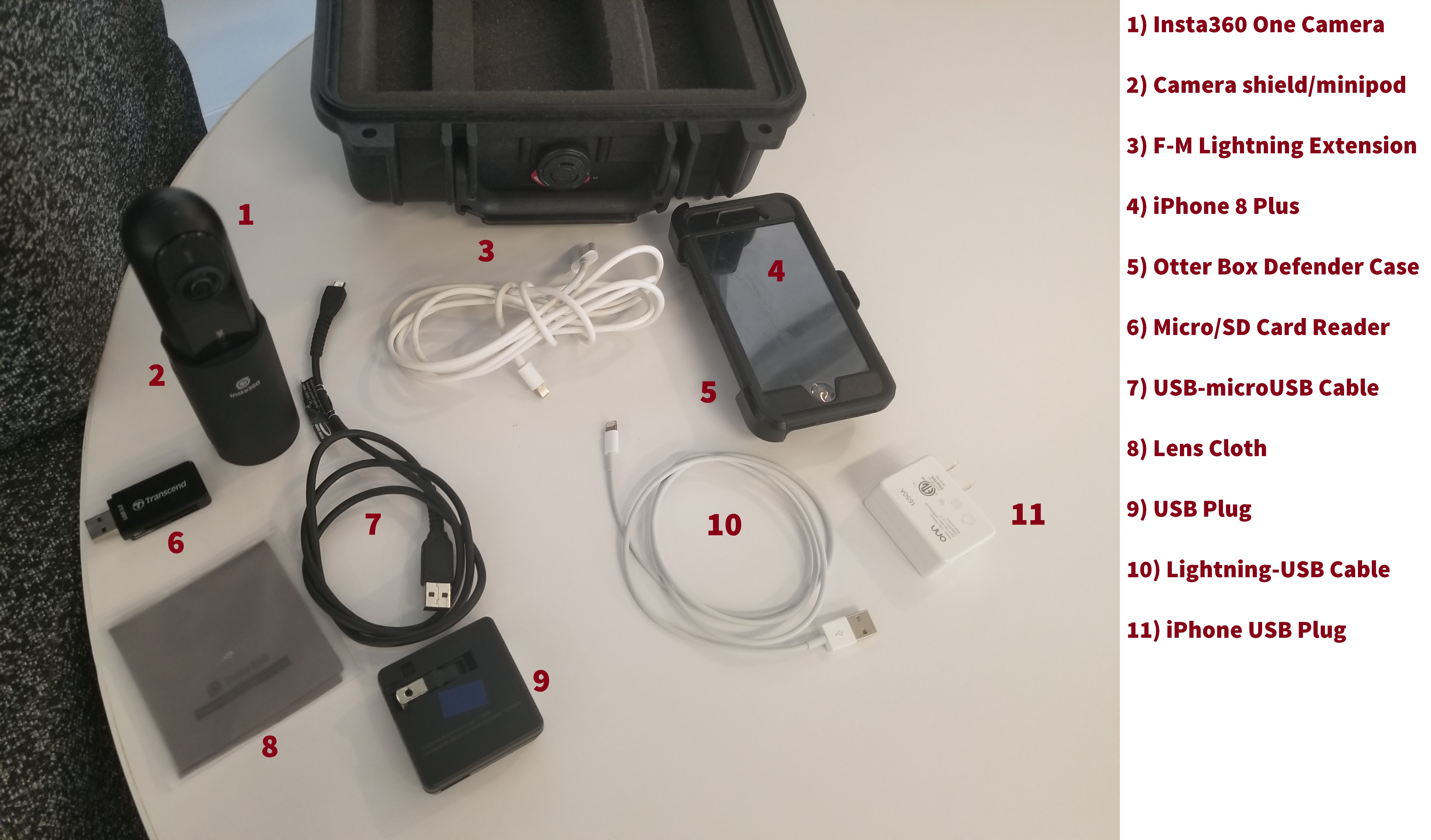
This gear is best suited for stories based around a unique setting or perspective
For Example:
Setup and Recording
Recording in Independent and Bluetooth Modes
Connecting to the iPhone
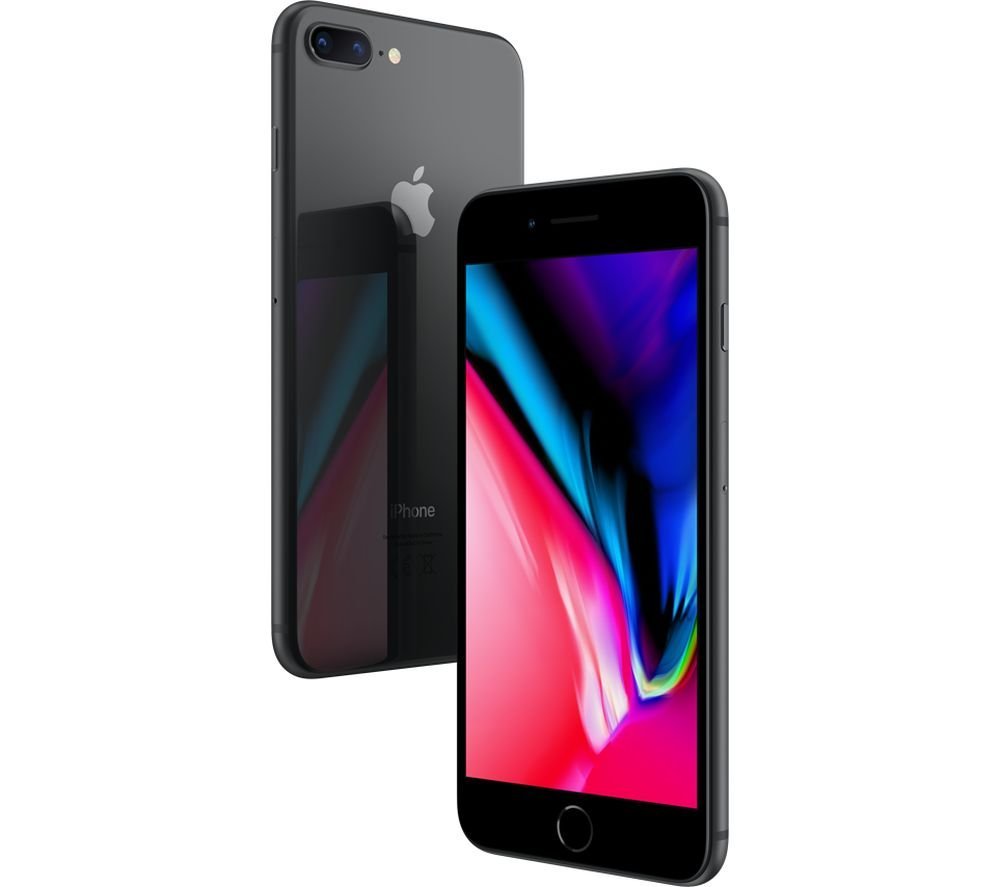
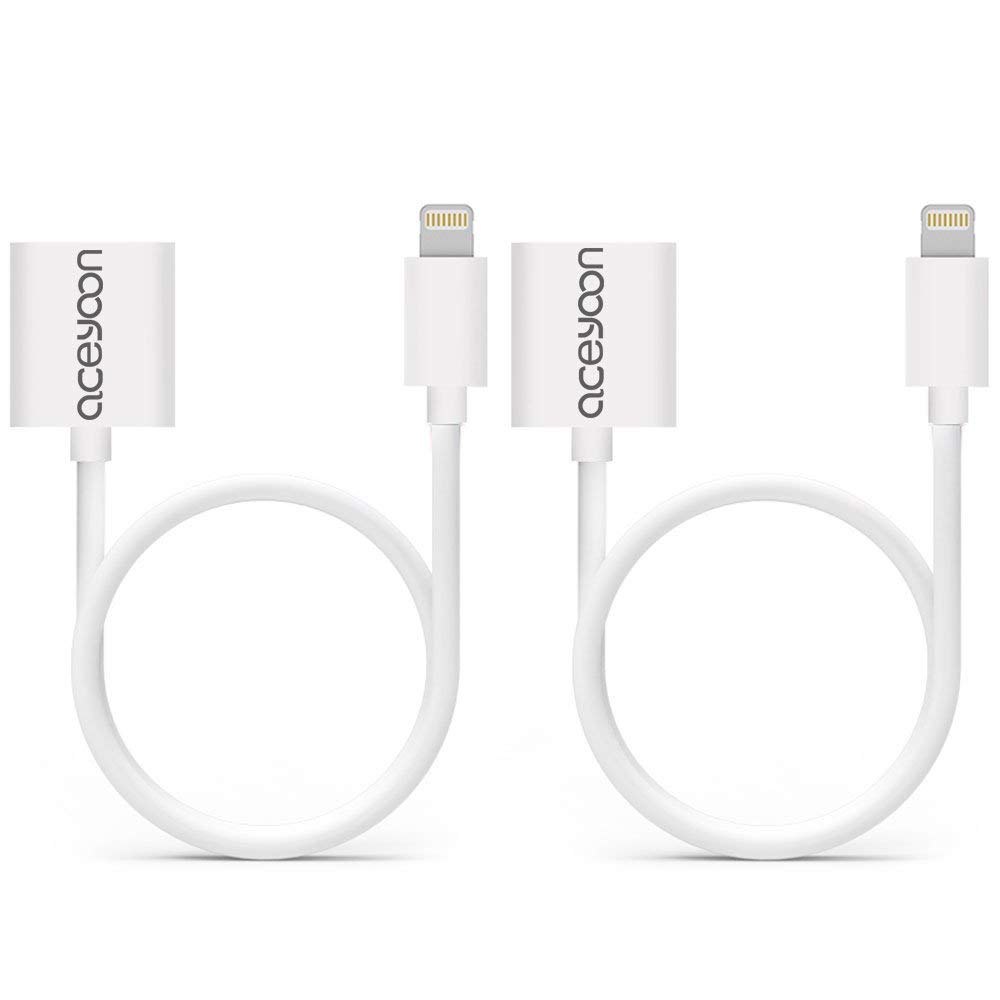
The lightning connector is on the side of the camera, just above the micro-USB port and 'Reset button'. Push down the switch to release the connector. Attach the 'female' end of the extension cable to the lightning connector and the 'male' end to your iPhone. The camera should turn on and launch the Insta360 One app automatically.
Troubleshooting: If the camera will not 'connect' to the app even after the cable is attached to both ends, disconnect the cable. Then manually turn the camera on by pressing the power button on the camera and turn it off again by pressing and holding the button down for 5 seconds. Then, while the camera is powered off, reattach the cable and connect it to the iPhone again.
Bluetooth Mode (recording without the cable)
Making sure the iPhone's Bluetooth signal is turned on, turn on the camera and take the app into Shooting Mode. Tap the 'bluetooth' icon at the bottom-left corner of the screen. When the app 'flips' the screen, the camera has connected to your phone via bluetooth. Choose the mode you want to record in (Photo, Video, Time-Lapse Video, Interval Shooting).
Note: You cannot preview what the camera sees in real time, view your recorded videos/photos or livestream in Bluetooth Mode. Those actions (along with other app features) require the cable connection.
Independent Mode (using the 'Power' button on the camera)
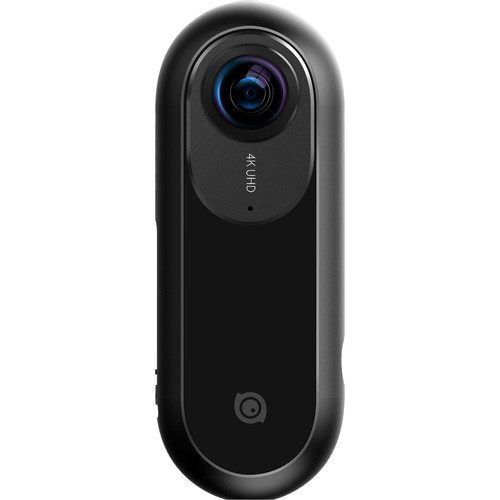
Tap the button once to turn the camera on. The camera will be in 'Independent Mode' when the startup sound plays and the LED light on the front of the camera changes from blue to green.
1. Take Photo: tap button once
2. Record Video: tap button twice
3. Turn Camera Off: hold button down for 5 seconds
Battery Life
The Insta360 One has a battery life of 60-70 minutes. Recharging the battery (via USB) can take up to 2.5 hours, so make sure your camera is fully charged and shooting is carefully planned out.
Camera Setup
Gyro Calibration: Main Menu > Settings (gear icon) > Camera Setting > Gyro calibration (Camera must be unplugged from phone and Bluetooth signal enabled on iPhone. Place camera on shallow end of Insta360 camera stand)
Settings: Go to 'shooting mode' (Main Menu > (yellow '+' icon at bottom right of screen) > 'Shoot' > (camera adjustments at bottom right, 'sliders' icon)
Mode: Auto, Manual
Exposure: -2.0 - +2.0 EV
White Balance: Auto, Incandescent, Sunny, Cloudy, Flourescent
Log: Enable/Disable (shoots in uncompressed video format, also 'RAW' setting in photo mode)
Recording Modes
Photo
Video
360° Livestream (Facebook, YouTube, Periscope, Weibo, and RTMP server)
Flat Livestream (same platforms)
For more advanced instructions, check out Insta360's written tutorials.
Editing Footage
Livestreaming in 360°