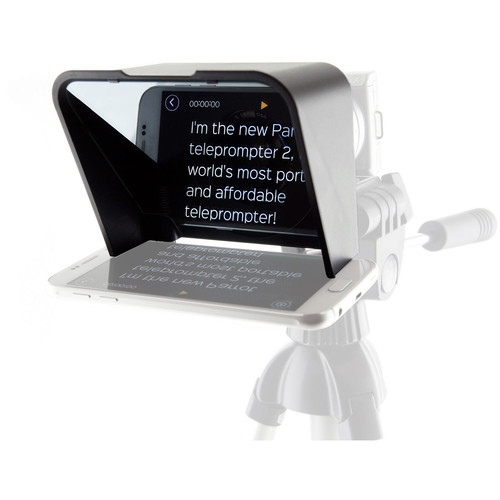
Parrot Portable Teleprompter kit
A smartphone-based teleprompter with Bluetooth remote control and Dropbox account
Inventory
$98.00
$349.99
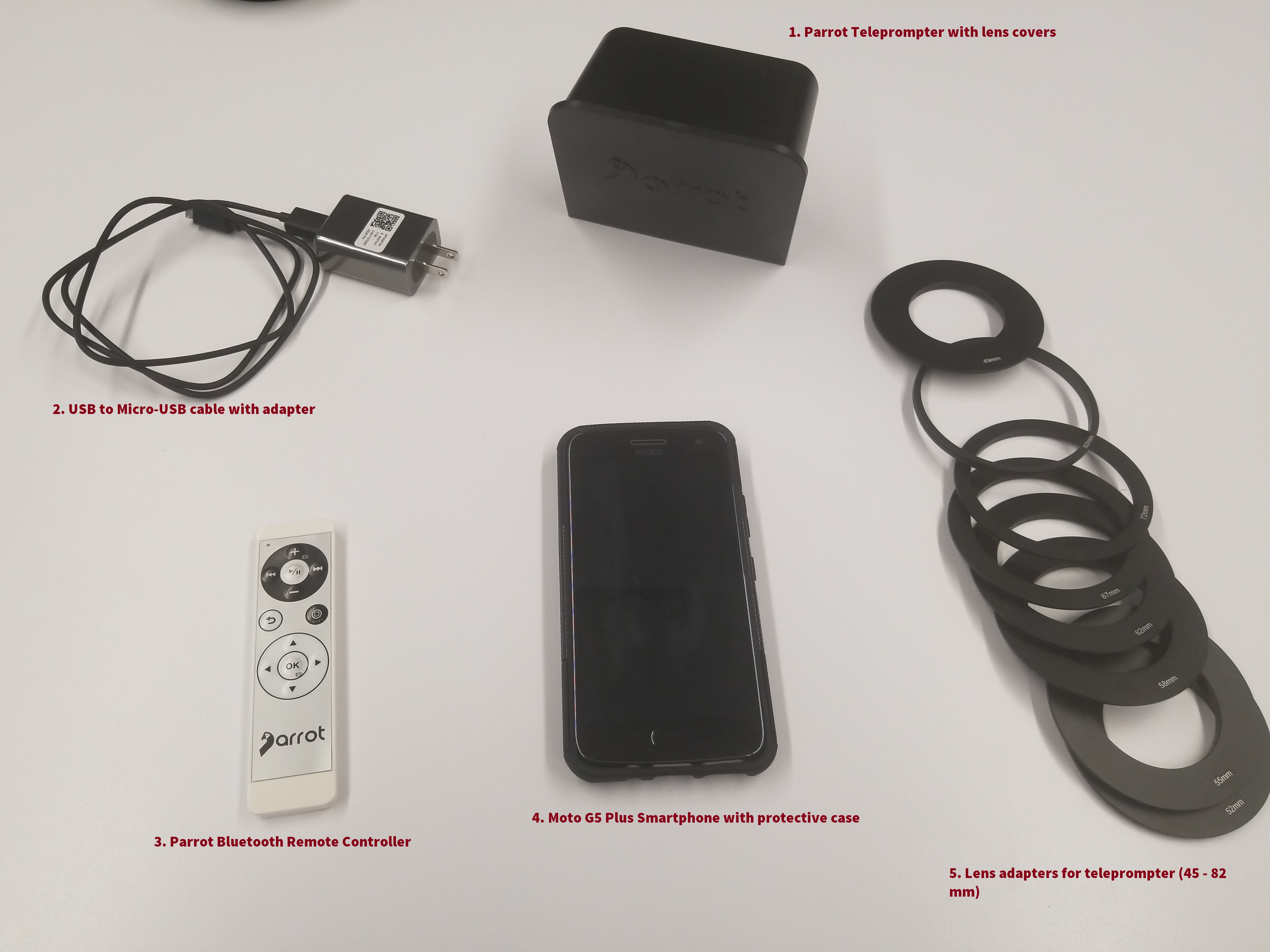
See Visual Inventory
Software & Digital Resources
- Manuals
- Software
- Graphic Resources
- N/A
Editorial reccomendations
This gear is best suited for any situation that requires quick, convenient access to a script.
For Example:
- Live Reports
- Video Promos
- On-Location Standups
Made with this kit:
Quick Start
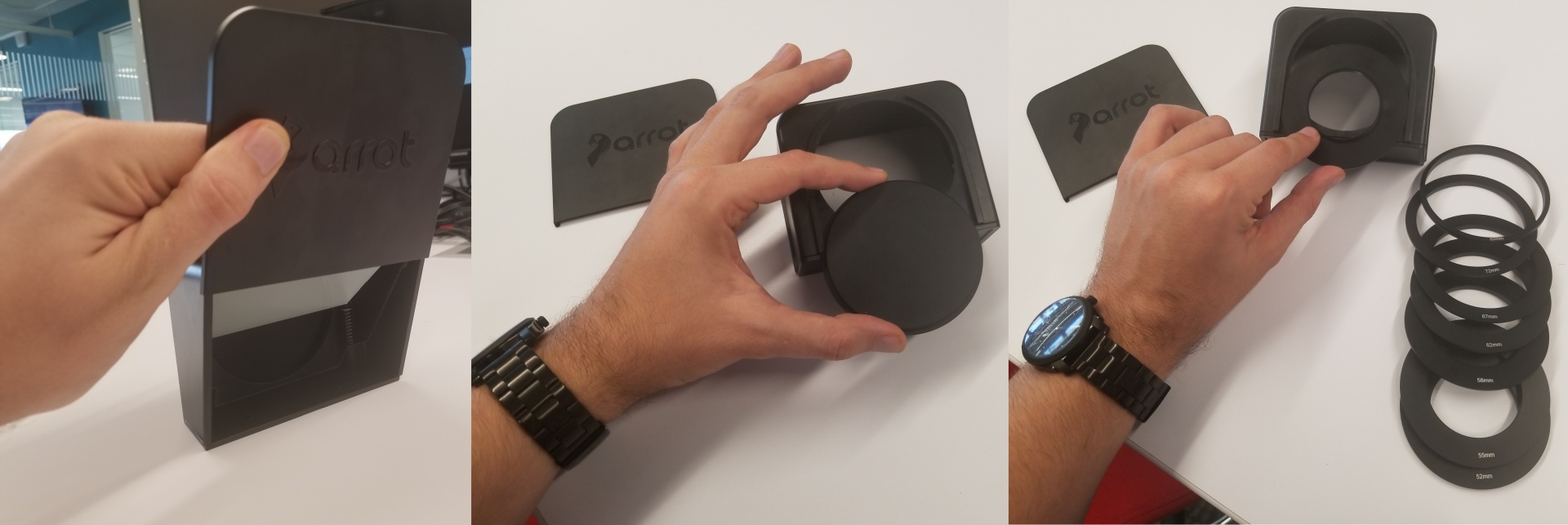
1. Slide the lens covers off of the front and back of the teleprompter. Slide on the adapter for whatever lens you plan to use to attach the teleprompter to your DSLR.
2. On your computer, sign into our McClatchy NVL Dropbox account. Go to Dropbox and click the "Sign in with Google" button. You can find the login information in the thumb drive we've included with this kit. When you've logged in, go to the directory 'Apps' and choose the folder 'Parrot Teleprompter'. Then open the folder the script you'll be reading from is stored and drag and drop it into the Dropbox folder.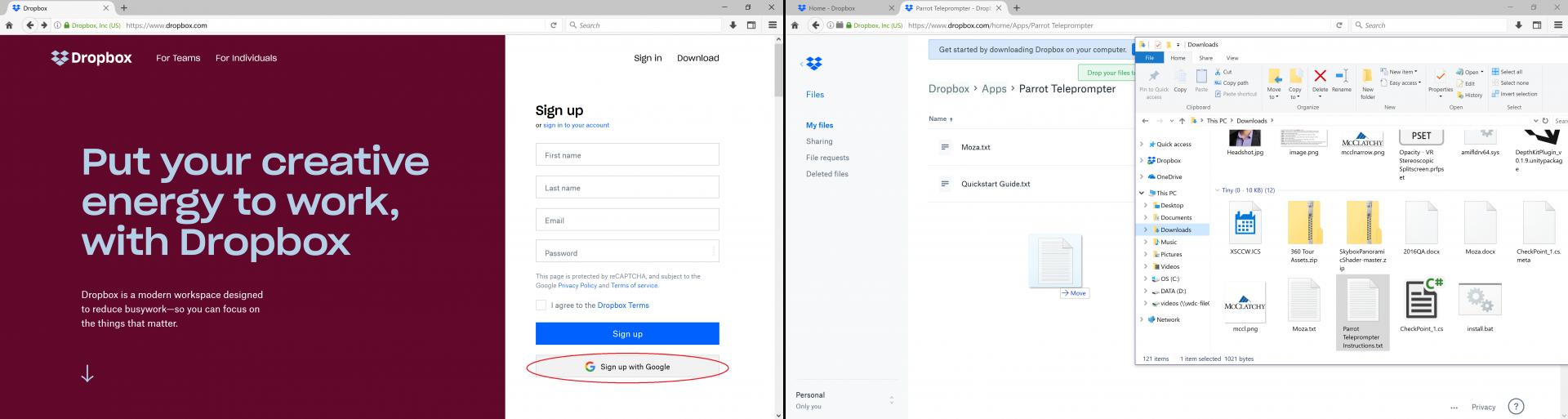
**IMPORTANT: All Teleprompter Scripts MUST be saved as Plain Text files (.txt)**
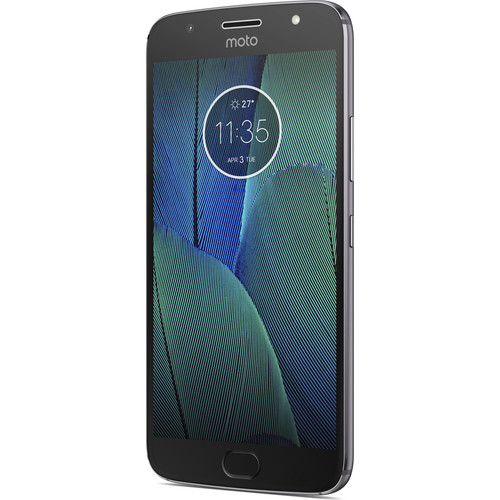
3. Now we're ready to load the script onto the teleprompter using the Parrot Teleprompter mobile app on the Moto phone included with this kit.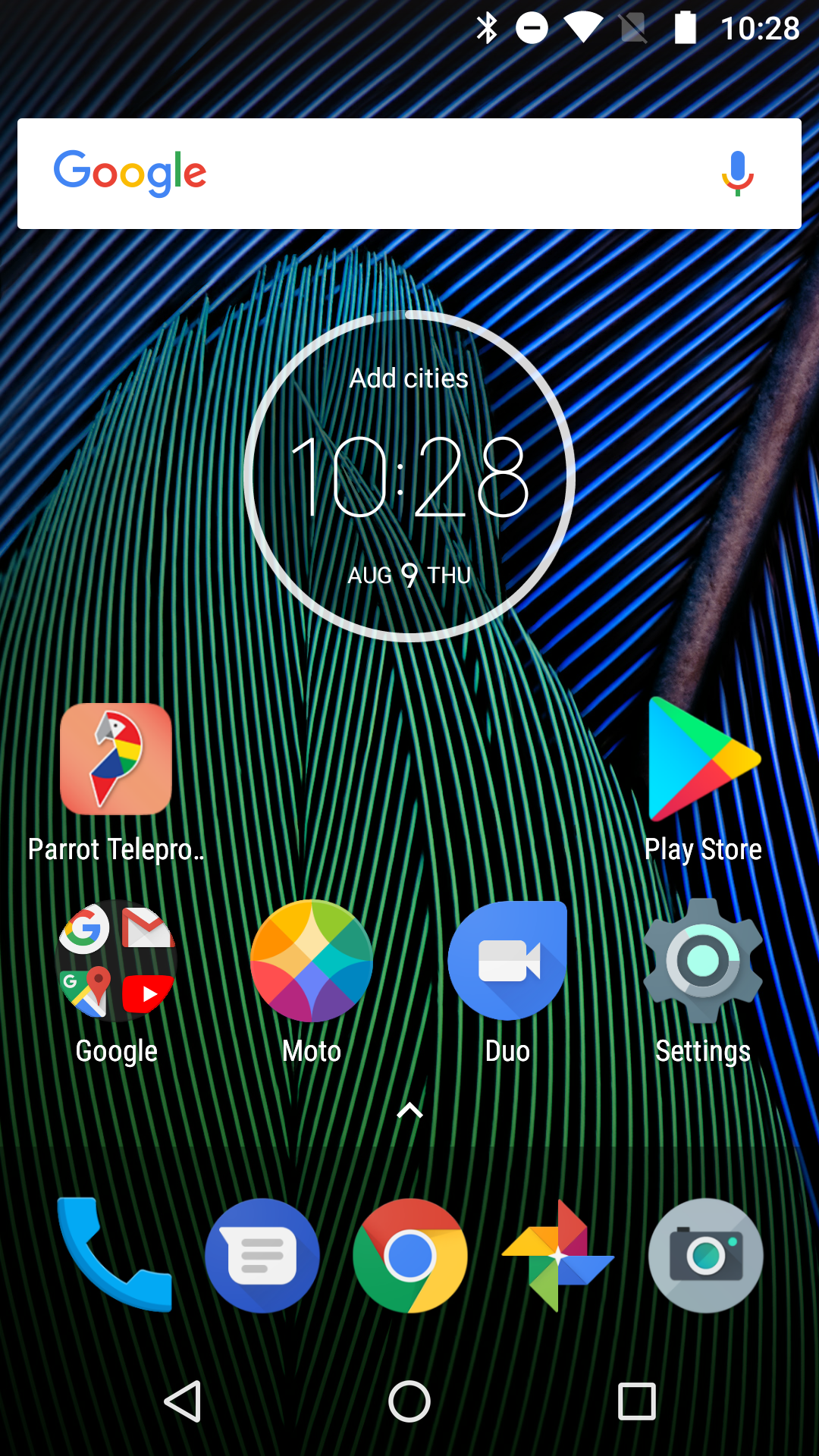
*Head to the next tab for mobile app instructions*
Detailed Instructions
Using the app:
1. Open the "Parrot Teleprompter" app on the Moto phone. On the main menu, click on the 'Gear' icon at the bottom right corner of the screen to activate the teleprompter settings:
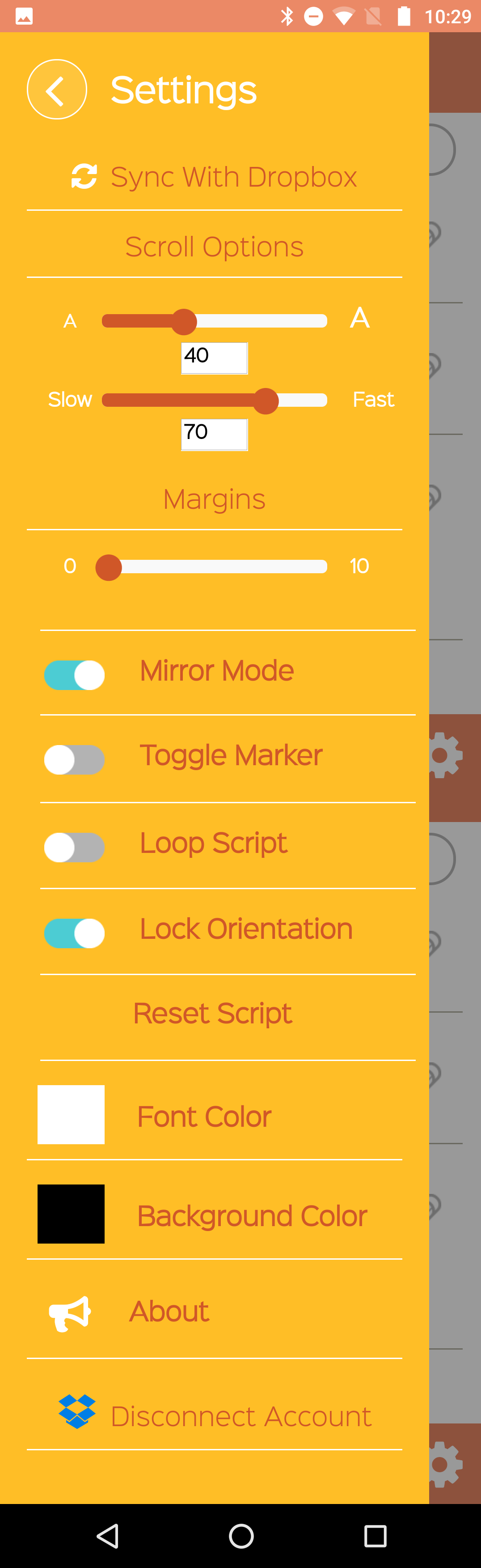
Notable Settings:
Scroll Options: Allow you to control the font size and the speed of the scroll.
Mirror Mode: Should be left 'On' by default. The text should be mirrored correctly when mounted on the teleprompter
Font/Background Color: Set by default to white text on a black background. Adjust color as necessary to see the text most clearly.
2. When you're satisfied with the settings, hit the 'Back' button on the phone (The 'triangle' shaped icon at the bottom-left of the screen) to return to the 'Main Menu'. Select the script you want to scroll from the main menu (See instructions on how to upload your script via Dropbox on the previous tab). This will activate the teleprompter.
3. When the scrolling text screen appears, mount the phone onto the bottom of the teleprompter. The phone should be facing horizontally and 'upside down' with the 'Play' and 'Settings' buttons (the 'yellow triangle' and 'gear' icons) facing toward you.
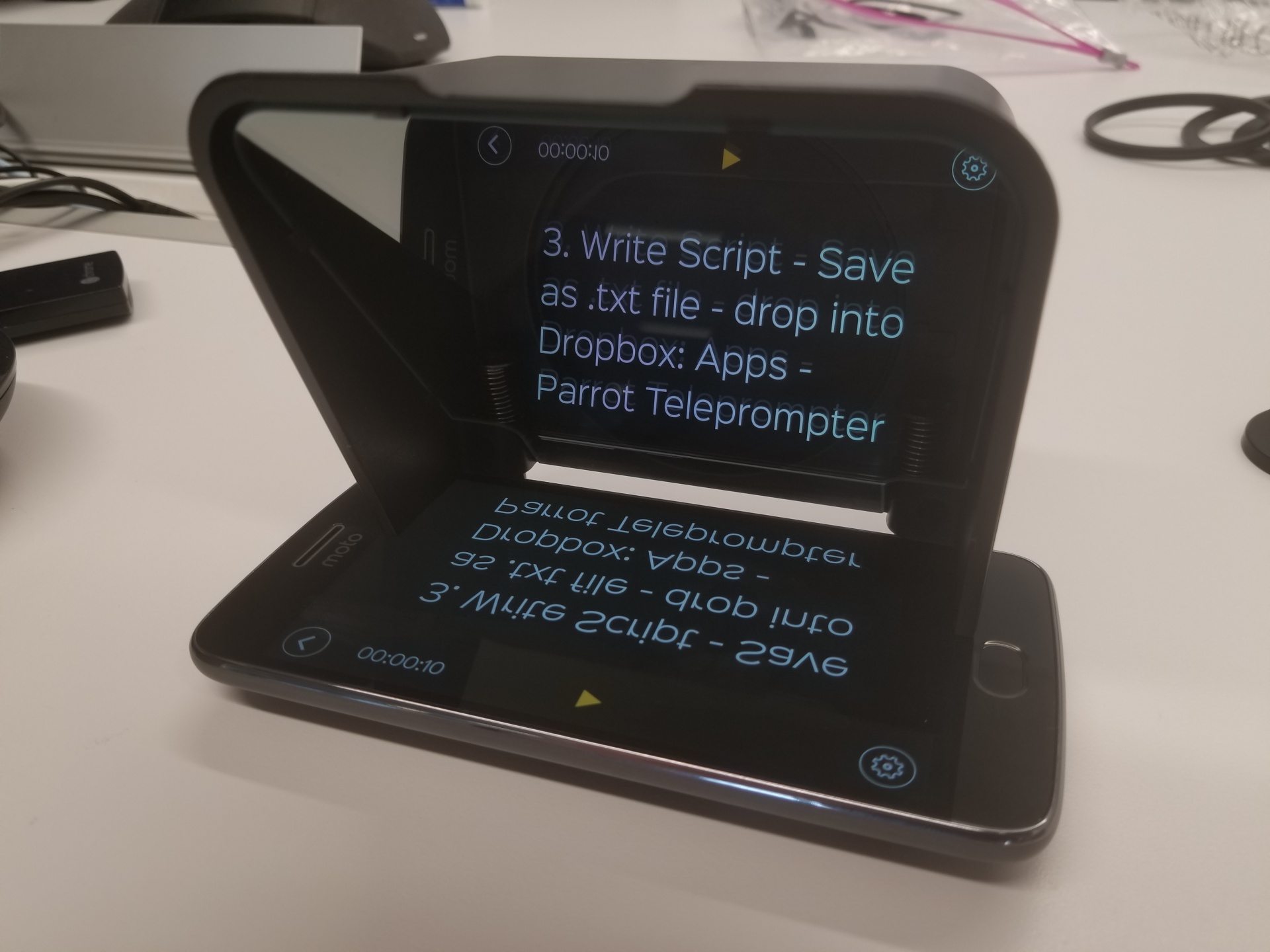
4. Hit the 'Play' button to begin scrolling. You can adjust the speeds by returning to 'Settings' and pause the scroll by hitting 'Play'
And those are the key steps to using the teleprompter and app! For maximum control of your teleprompter, you'll want to use Parrot's Bluetooth Remote.
See the next tab for instructions on connecting and using the Bluetooth Remote.
Workflow
Using the Bluetooth Remote
Connecting it to your phone:
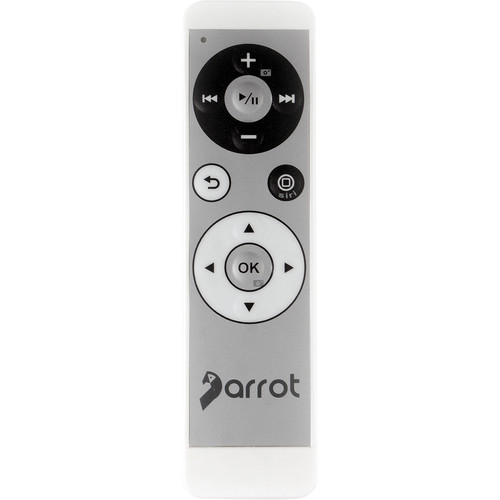
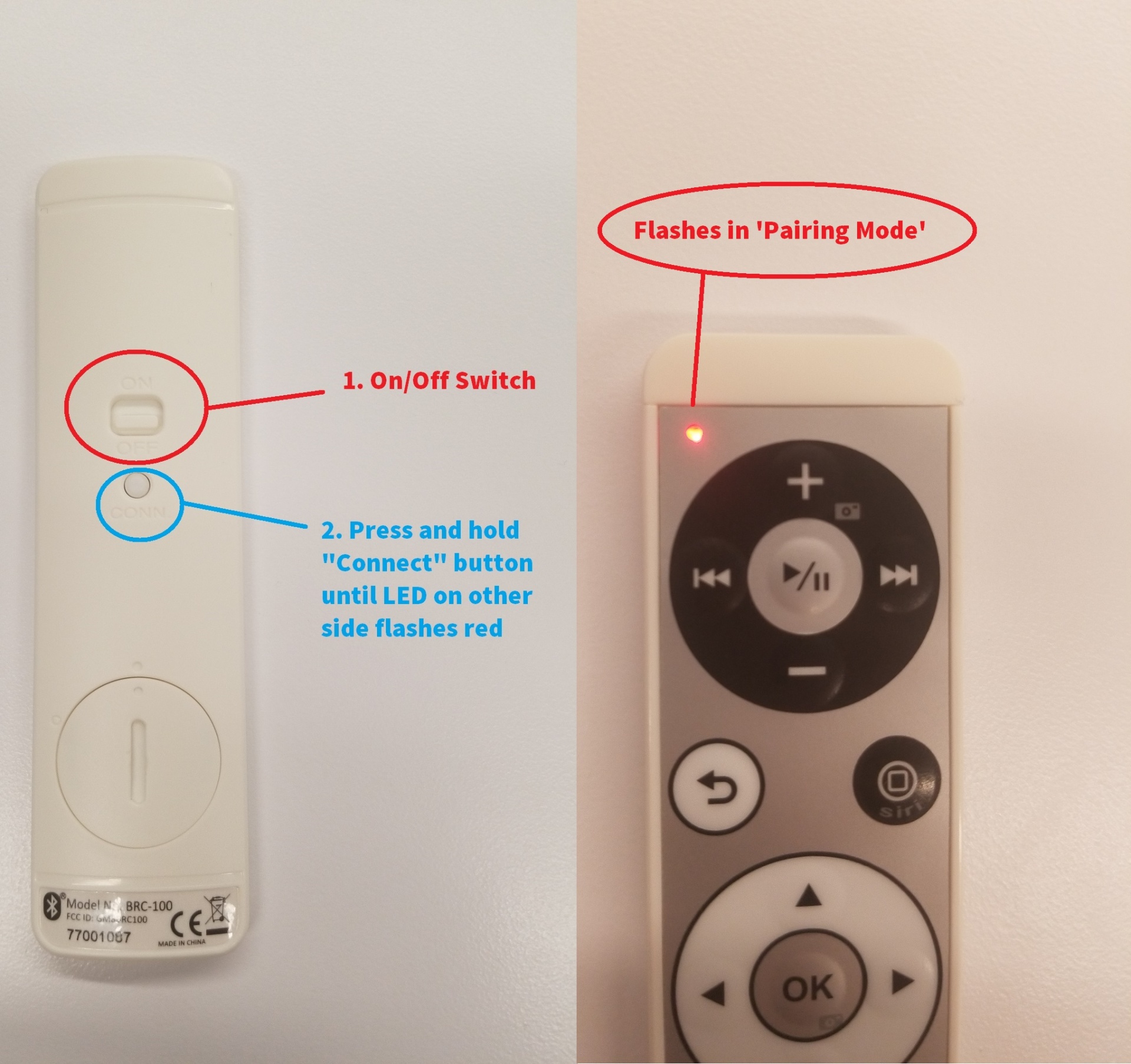
1. Flip the switch on the back of the remote to 'On'. Then press and hold the small 'Conn' button for 5 seconds or until the LED light on the front of the remote begins blinking.
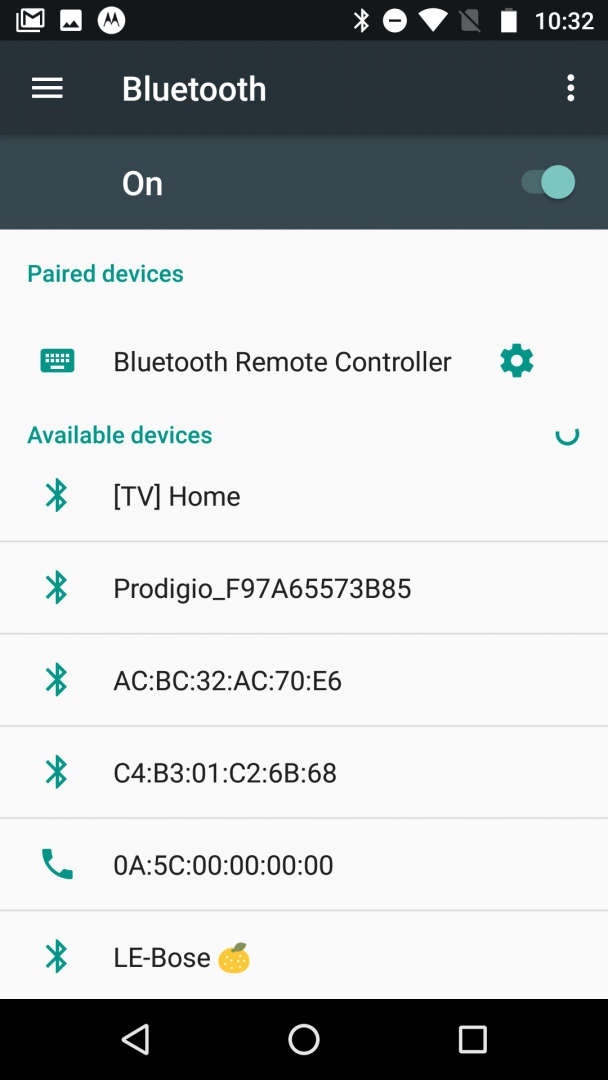
2. Now go to your smartphone's 'Settings' (gear icon) and select 'Bluetooth'. On the list of Bluetooth devices that comes up, select 'Bluetooth Remote Controller'.
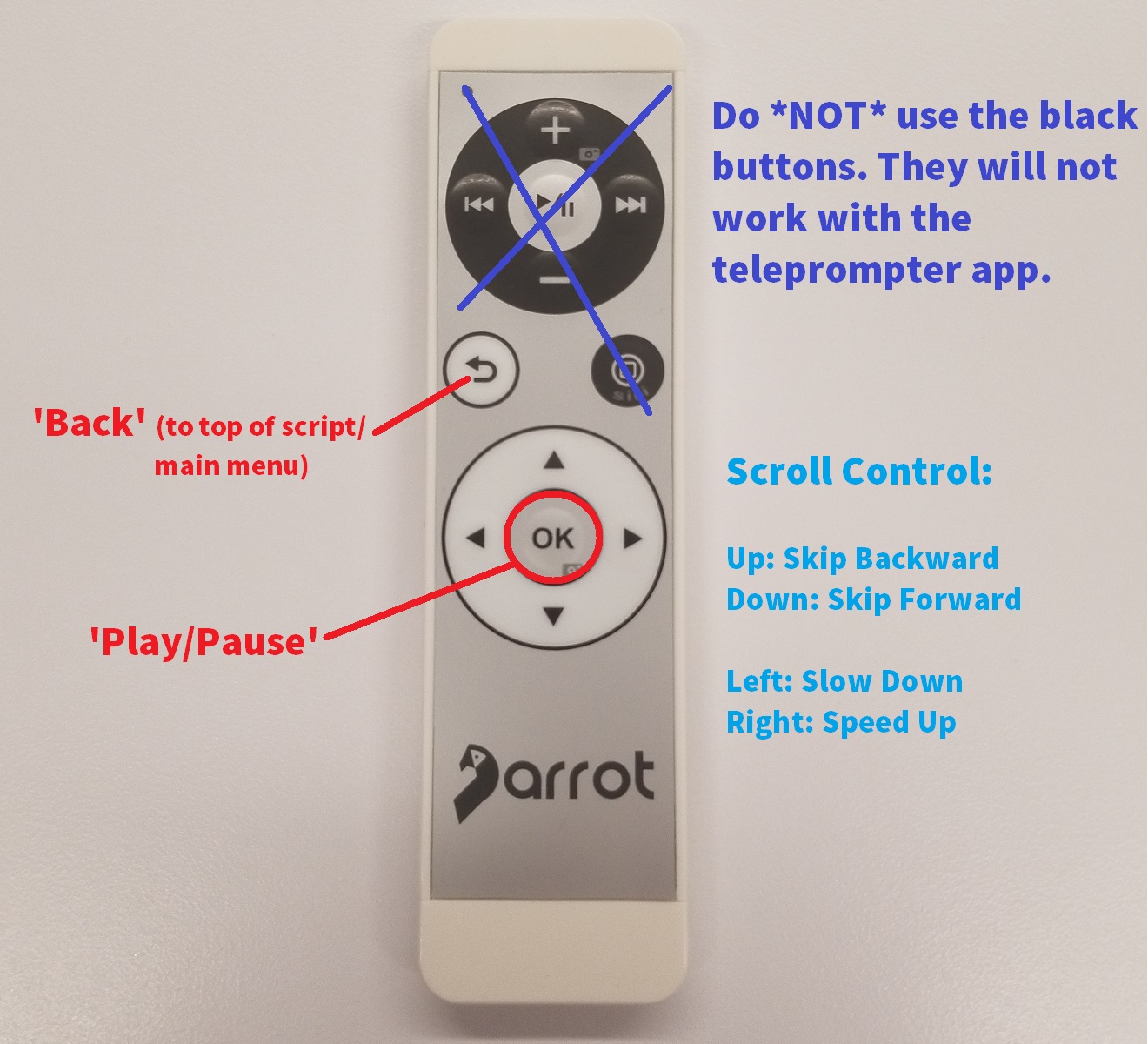
3. Once the Remote is connected, go to your Parrot Teleprompter app, load your script and mount the phone to the teleprompter (See instructions on the previous tab). Use the *white* buttons on the remote to control the teleprompter (see key below)
Photos