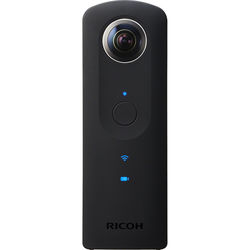
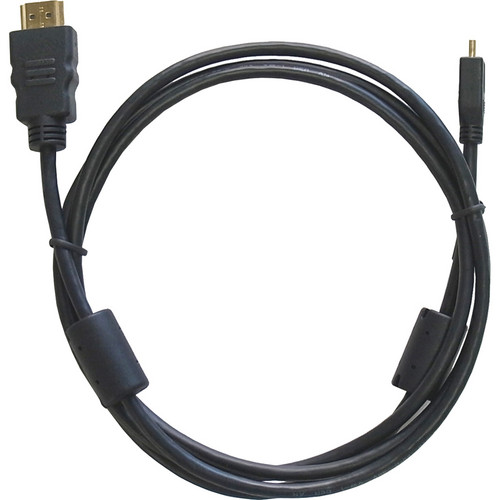
This gear is best suited to stories where PLACE is important, or when you've obtained exclusive access.
For Example:
Pairing to mobile device:
Pairing a RICOH with your iPhone or Android app requires a bit more manual work. First press the ‘Power’ button and then the “WiFi” button on the camera (top and middle of the three buttons on the side). You should see blue icons light up on the front of the camera. When the WiFi icon on the front of the camera is blinking, go to your phone’s Wi-Fi settings, and select the ‘THETAXS’ Wi-Fi network corresponding to your camera (i.e. THETAXS00227360.OSC). When prompted for a password, enter the number sequence immediately following ‘THETAXS’ on your network (i.e. 00227360). The phone will now be able to pair with the camera on the THETA S app.
THETA S app:
After you’ve connected your mobile device to the camera via Wi-Fi, you can open the THETA S app to the main menu, where you can look through the images and videos stored on the camera and adjust the app and camera settings.
Click the Theta S icon in the bottom right corner of the screen to access the camera.
You can switch between “Photo” and “Video Mode” using the buttons on the top of the camera screen and press the large button in the center to start and stop recording.
The screen will also show you how much battery life and memory remains.
Video Mode: The only settings you can change in video mode are the size (1920x1080, 1280x720). The lower resolution setting will allow you to record more hours of video (nearly 3 hours to the 1 hour available in Full HD), but due to the incredibly low quality 360 video this produces, it’s recommended to keep the resolution set to 1920x1080)
Photo Mode: This is where you can adjust the camera settings for your still photos. You may choose the following setup modes: Auto, Shutter Priority, ISO Priority, Manual. In Manual, you can adjust the Shutter Speed, ISO, and White Balance. You can also press the menu icon in the upper-right corner of the Photo screen to adjust further Camera settings
Settings:
Display Mode: Photo Mode is the only mode that offers a preview display. You can choose to turn it OFF, have it displayed across the screen as a Panorama, or Full Screen (which will allow you to view the preview image in 360° by swiping)
Image Size: (5376x2688 or 2048x1024, again we recommend the highest res) and Shooting Method (where you can set up time-lapse recording or timed shots)
Gallery:
The main menu. Notable for being able to preview your images and video, and giving you the ability to transfer stills and video clips from your camera to your phone (Click “Cam images, and then click the file you want to add to your phone).
Live Streaming:
The RICOH Theta S has a "Live" mode that will allow it to stream in 360. It requires the use of a computer with Open Broadcaster Software. Check the User Manual section on Live Streaming and/or HERE for more information